
filed in
QuickBooks Online Setup: A Step-by-Step Guide for New Jersey Businesses

QuickBooks Online setup is the process of configuring your company profile, chart of accounts, bank feeds, opening balances, and tax settings so your books are accurate from the first transaction. Done in the right order, it takes a few hours and prevents months of cleanup. Done out of order, it usually means a rebuild.
This guide walks Northern New Jersey business owners through each step in the sequence we use at Blaize Accounting Services, including the New Jersey sales tax details that generic tutorials skip. Follow it, and you will finish with books you can trust at tax time.
What should a QuickBooks Online setup include?
A complete QuickBooks Online setup includes seven pieces: the right plan, accurate company information, a clean chart of accounts, connected bank and credit card feeds, correct opening balances, sales tax settings, and user permissions. Skipping any one of them creates errors that surface later as tax problems.
| Definition: QuickBooks Online setup is the one-time configuration of a cloud accounting file, covering company details, chart of accounts, bank connections, opening balances, tax settings, and users, so that every future transaction is recorded and categorized correctly from day one. |
| Setup step | What you are deciding | Risk if skipped |
|---|---|---|
| Choose a plan | Users, inventory, projects, budgeting | Paying for features you do not use, or lacking ones you need |
| Company information | Legal name, entity type, tax form, fiscal year | Wrong tax reports and a mismatched return |
| Chart of accounts | How income and expenses are categorized | Missed deductions and messy reports |
| Bank feeds | Which accounts sync, and from what date | Duplicates and gaps in transactions |
| Opening balances | Where the books start | A permanent out-of-balance file |
| Sales tax | Whether, where, and how you collect | Penalties from the state |
| Users and permissions | Who can see and edit what | Unauthorized changes and weak controls |
Which QuickBooks Online plan should you choose?
Choose the plan that matches your real workflow today, not the one you might need in three years. QuickBooks Online offers four main tiers, and prices change often, so treat the figures below as general market data rather than a quote.
| Plan | Approx. monthly price | Users included | Best fit |
|---|---|---|---|
| Simple Start | About $38 | 1 | Solo owners with basic invoicing and expenses |
| Essentials | About $85 | 3 | Teams that pay bills and track time |
| Plus | About $140 | 5 | Product businesses, contractors, and budgeting needs |
| Advanced | About $340 | 25 | Larger teams needing custom permissions and automation |
According to NerdWallet’s pricing review, Intuit has raised prices most years since 2023, so budget for annual increases. Most plans offer 50% off for the first 3 months. New users can get a 30-day free trial.
If you carry inventory or run jobs you need to track for profitability, Plus is usually the practical starting point. If you only invoice clients and pay a few expenses, Simple Start is enough.
How do you set up your QuickBooks Online company file?
Start with your company settings, because every report and tax form depends on them. Errors here are easy to make and hard to notice.
- Enter your legal business name exactly as it appears on your tax filings and bank accounts.
- Select your entity type and tax form, such as Schedule C, Form 1065, Form 1120-S, or Form 1120. This controls how QuickBooks maps accounts to your return.
- Confirm your fiscal year start. Most small businesses use January, but confirm it with your accountant.
- Choose accrual or cash basis reporting. Cash basis is common for small service businesses. Accrual is required or preferred in some cases, such as inventory and larger revenue.
- Set a closing date and password once your books are reconciled, so no one changes closed periods by accident.
The closing date is the setting most owners never touch, and most accountants insist on. It protects the numbers your tax return is built from.
How should you build your chart of accounts?
Build a chart of accounts that mirrors your tax return and the way you manage the business, and keep it as short as you can. The chart of accounts is the list of categories QuickBooks uses to sort every transaction into assets, liabilities, income, or expenses.
- Start from the default list, then edit. Delete or merge accounts you will never use instead of leaving clutter.
- Match tax categories. Separate meals, vehicle expenses, and professional fees so you can easily support deductions.
- Use subaccounts sparingly. One level of detail is enough for most small businesses.
- Keep personal spending out. Owner draws and contributions belong in equity accounts, not expense categories.
- Avoid vague buckets. A large Miscellaneous or Ask My Accountant balance is a warning sign, not a category.
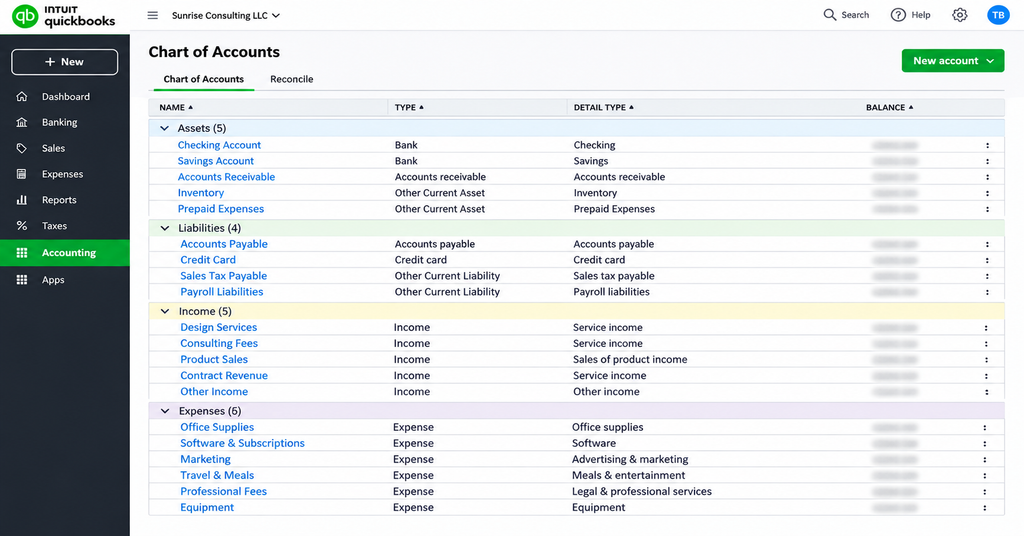
One practical tip from our client work: most owners who find missed deductions at year-end had categories that were too broad, so expenses were lumped together and never reviewed.
How do you connect bank feeds and credit cards in QuickBooks Online?
Connect every business bank account and credit card, choose a clean start date, and reconcile each account monthly. Bank feeds import transactions automatically, but they do not prove your books are correct. Only reconciliation does that.
- Connect each account through the Bank transactions page, using business accounts only.
- Pick a start date that matches your opening balances, so you do not import old transactions twice.
- Create bank rules for repeat vendors such as your landlord, utilities, and software subscriptions.
- Review and categorize weekly. Ten minutes a week beats four hours at quarter end.
- Reconcile every account monthly against the bank statement until the difference is zero.
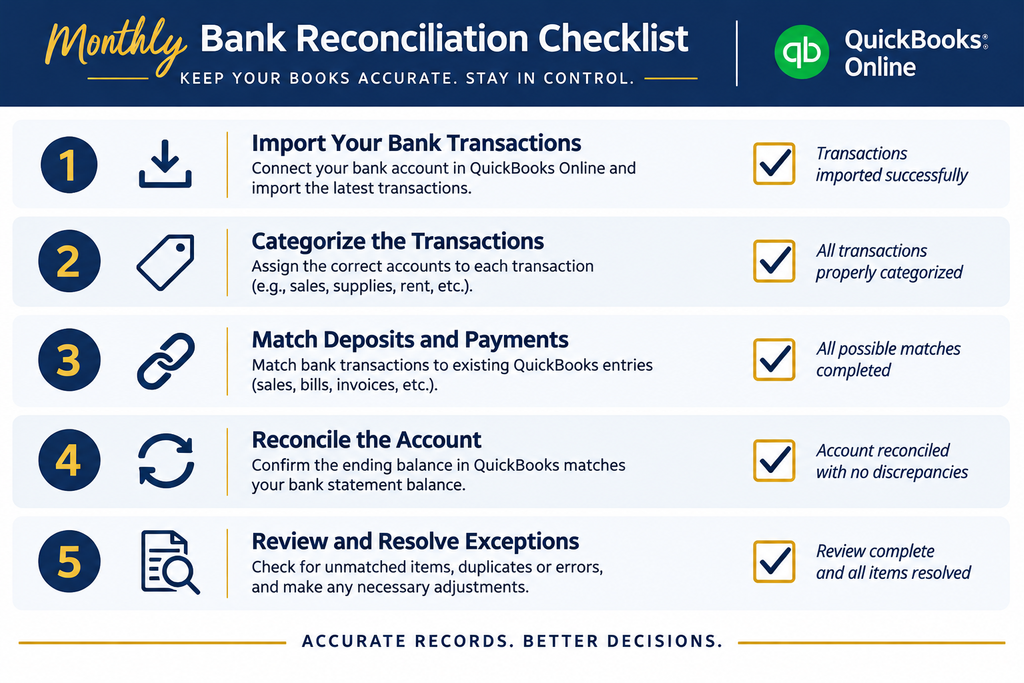
Here is a composite example based on patterns we see often. A Bergen County contractor connects his accounts and categorizes for two years without ever reconciling. At tax time, several deposits are duplicated, and a loan payment sits in an expense account. The fix takes days. Monthly reconciliation would have caught both in minutes.
How do you enter opening balances correctly?
Enter opening balances as of the day before your first QuickBooks transaction, using your last closed financial statements or bank statements. The Opening Balance Equity account should end at zero after you finish, and a lingering balance means something was entered incorrectly.
- Assets: bank balances, accounts receivable, equipment, and inventory on hand.
- Liabilities: credit cards, loans, unpaid bills, and payroll liabilities.
- Equity: owner contributions and prior retained earnings, based on your last return.
- Open invoices and bills: enter them individually so aging reports work.
If you are switching from another system or from QuickBooks Desktop, ask your accountant to review the migrated file before you rely on it. Bad data moves over just as easily as good data.
How do you set up sales tax in QuickBooks Online for New Jersey?
Register with the state first, then turn on sales tax in QuickBooks. New Jersey vendors must register through the Division of Revenue and Enterprise Services, receive a Certificate of Authority, and then collect and remit tax on taxable sales. The NJ Division of Taxation vendor guidance explains the registration requirements and says to register at least 15 days before you begin business.
- Confirm what is taxable. Many products are taxable, while many professional services are not. Check before you configure anything.
- Enter your registration details in QuickBooks sales tax settings and set your filing frequency to match your state notice.
- Assign tax codes to items and customers, including exempt customers who provide certificates.
- Run the sales tax liability report before each filing and compare it to your bank deposits.
Turning on sales tax without registering, or collecting tax you are not authorized to collect, creates problems with the state. Confirm your status first, then configure QuickBooks.
How do you set up payroll and user permissions?
Add users with the lowest permission level that lets them do their job, and treat payroll as a compliance function, not just a feature. Give your accountant their own login instead of sharing yours, so every change is traceable.
- Use individual logins for you, your bookkeeper, and your accountant.
- Limit access to bank, payroll, and reports for staff who do not need them.
- Set up payroll only after your chart of accounts and company file are final, so payroll expenses and liabilities map correctly.
- Keep employment records for at least four years, as the IRS recordkeeping guidance advises.
Payroll errors carry penalties, so many owners prefer to have a professional handle payroll compliance rather than learn it under deadline pressure.
What are the most common QuickBooks Online setup mistakes?
The most common setup mistakes are skipping reconciliation, mixing personal and business spending, entering wrong opening balances, and building a chart of accounts that does not match the tax return. Each one is preventable at setup and expensive to fix afterward.
- Never reconciling, which lets errors hide for months.
- Using one card or account for personal and business spending.
- Leaving Opening Balance Equity with a balance after setup.
- Categorizing everything as Miscellaneous, which erases deduction detail.
- Sharing one login across the team, which removes accountability.
- Letting the file go months untouched, then trying to catch up all at once.
| Free checklist: Not sure whether your books are ready for tax season? Download our tax readiness checklist and see where your records stand today. |
What should you do in the first 30 days after setup?
In the first 30 days, build the habits that keep the file clean: categorize weekly, reconcile once, and review three core reports. This is where a good setup becomes a reliable system.
- Week one: categorize every imported transaction and create bank rules for repeat vendors.
- Week two: send or record every open invoice and bill so receivables and payables are current.
- Week three: upload receipts and attach them to expenses you may need to defend in an audit.
- Week four: reconcile every account, then review the Profit and Loss, Balance Sheet, and Accounts Receivable aging reports.
If the reports look wrong at this stage, fix them now. Problems found in month one cost a fraction of problems found in month twelve.
| Next step: Want a second set of eyes on your setup before you start entering transactions? Our QuickBooks Online setup and cleanup service covers the chart of accounts, opening balances, and bank feeds. Book a consultation. |
Frequently asked questions about QuickBooks Online setup
How long does QuickBooks Online setup take?
A simple service business can finish the core setup in two to four hours. A business with inventory, payroll, multiple bank accounts, or prior year data usually needs one to three days of careful work, including reconciling the opening balances.
Can I set up QuickBooks Online myself?
Yes, and many owners do. The risk is not the software; it is the accounting decisions inside it, such as the chart of accounts, opening balances, and sales tax settings. Owners who set up alone often pay for a cleanup later, so a one-time review by an accountant is inexpensive insurance.
Which QuickBooks Online plan is best for a small business?
Simple Start fits a solo owner with basic invoicing and expenses. Essentials adds bill management for growing teams. Plus adds inventory, project tracking, and budgeting, which most product and contractor businesses need. Choose the plan that matches how you actually operate, because switching later is possible but disruptive.
Do I need to charge sales tax in New Jersey?
If you sell taxable goods or services in New Jersey, you must register with the state, receive a Certificate of Authority, and collect and remit sales tax. Many professional services are not taxable, but products and some services are, so confirm your specific situation before turning sales tax on in QuickBooks.
What is the most common QuickBooks Online setup mistake?
Skipping bank reconciliation is the most common mistake. Bank feeds import transactions, but only a monthly reconciliation proves the books match reality. Without it, duplicate entries, missed deposits, and miscategorized expenses quietly pile up until tax season.
Should I move from QuickBooks Desktop to QuickBooks Online?
Move if you need remote access, automatic bank feeds, or easy sharing with your accountant. Stay if you rely on industry-specific desktop features. A migration should always include a review of your lists, balances, and reports so bad data does not follow you into the new file.
Can my accountant fix a QuickBooks Online file that was set up wrong?
Usually yes. A cleanup reviews the chart of accounts, reclassifies transactions, reconciles every account, and corrects opening balances. The earlier you fix it, the cheaper it is, because errors compound with every month of new transactions.
| Work with Blaize Accounting Services: Blaize Accounting Services helps Northern New Jersey small businesses set up QuickBooks Online correctly and keep their books tax-ready through our bookkeeping services. If you would rather not do this alone, schedule a call, and we will review your situation and recommend the right next step. |
ABOUT THE AUTHOR
Tania Blaize is the founder and principal accountant of Blaize Accounting Services in Bergenfield, New Jersey. With more than 20 years of experience, she helps small business owners and high-net-worth individuals across Bergen, Passaic, Essex, Morris, and Hudson counties with bookkeeping, QuickBooks Online and Xero setup, payroll compliance, and tax planning. She is an Enrolled Agent, QuickBooks ProAdvisor, and holds an MBA in Finance.
This article is general information, not tax or legal advice for a specific situation. Consult a qualified professional about your own facts.
